---
title: Designing and Editing Badge
description: Step-by-step guide to designing, editing, and managing badge designs in the Badges & Passes library.
---
[Skip to content](https://knowledgehub.crowdcomms.com/2-2-designing-and-editing-badge#main-content)
[](https://crowdcomms.com/)
- Home
- Products
- Pricing
- Blog
- Company
Open main navigation
Close main navigation
- Home
- Products
- Pricing
- Blog
- Company
- Contact us
Contact us
How can we help you?
- There are no suggestions because the search field is empty.
1. [Knowledge Hub](https://knowledgehub.crowdcomms.com/?hsLang=en-gb)
2. [Event App, Virtual & Hybrid Platform](https://knowledgehub.crowdcomms.com/event-app-virtual-hybrid-platform?hsLang=en-gb)
3. [Networking](https://knowledgehub.crowdcomms.com/event-app-virtual-hybrid-platform?hsLang=en-gb#networking)
15 July 2026
# Designing and Editing Badge
• Click on "Libraries" in CMS
• Click on "Badges & Passes"
• Click on "Add a new badge"
[](https://knowledgehub.crowdcomms.com/hubfs/Knowledge%20Base%20Import/image-1634653626467.png?hsLang=en-gb)
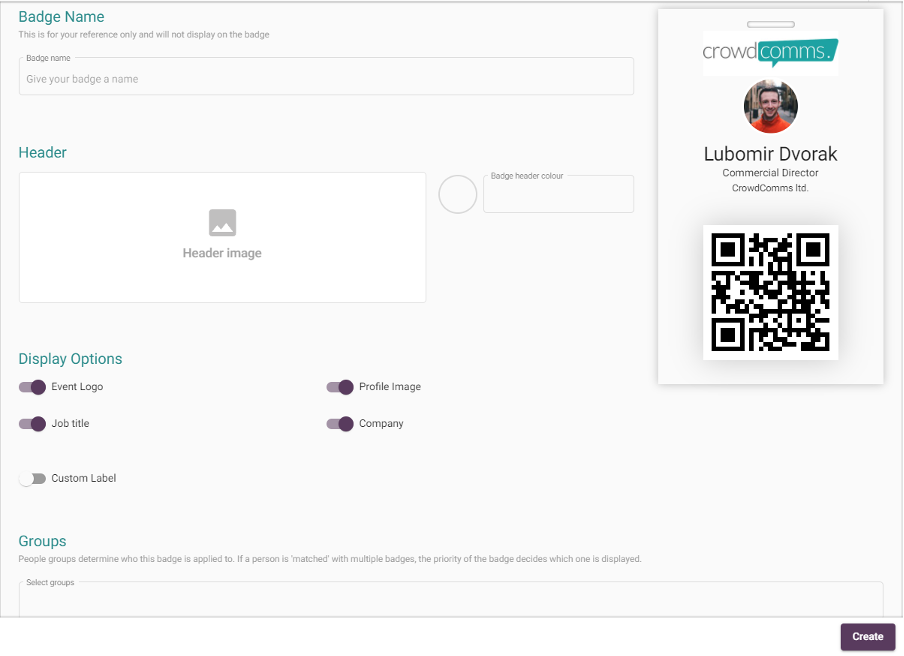
• Fill out fields as required.
(Note: A preview of the badge will display update as you design/edit the badge (Profile picture, job title and company will however not update on the preview)
[](https://knowledgehub.crowdcomms.com/hubfs/Knowledge%20Base%20Import/image-1634653665764.png?hsLang=en-gb)
1\. Badge Name (This can be anything and will only be shown in the list in CMS)
2\. The header can be either an image or a colour
3\. Select what you would like displayed on the badge; Event Logo, Profile Image, Job title and Company (Note; the Event Logo displays over the header)
4\. If you would like a custom label on your badge, then turn the custom label toggle ON. You will then be able to type in the custom label and the background/text colour of the label
5\. Select which group the badge is shown to (People groups determine who this badge is applied to. If a person is 'matched' with multiple badges, the priority of the badge decides which one is displayed.)
6\. Click "Create" to create and save the badge.
[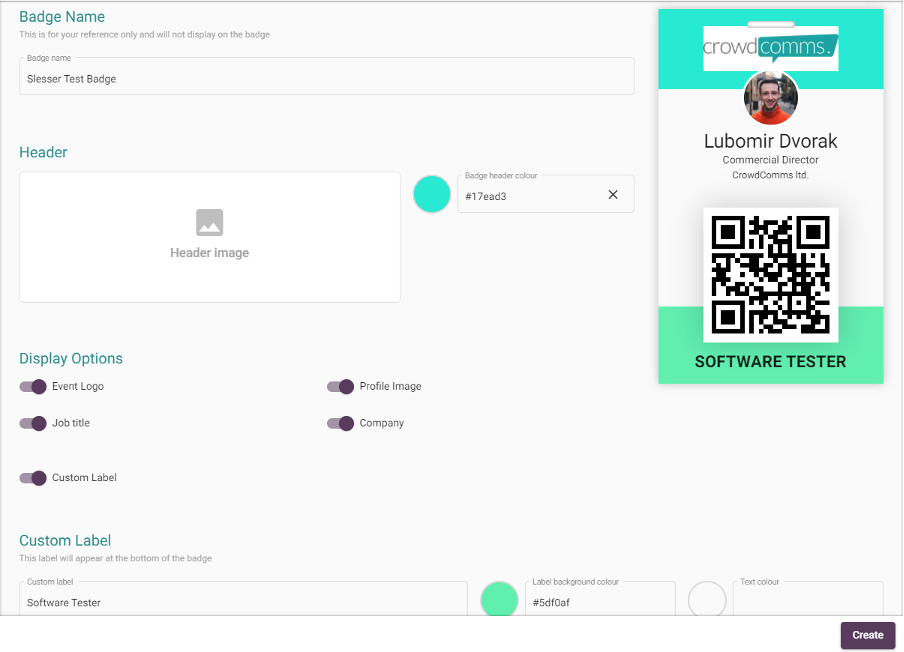](https://knowledgehub.crowdcomms.com/hubfs/Knowledge%20Base%20Import/image-1634653760737.png?hsLang=en-gb)
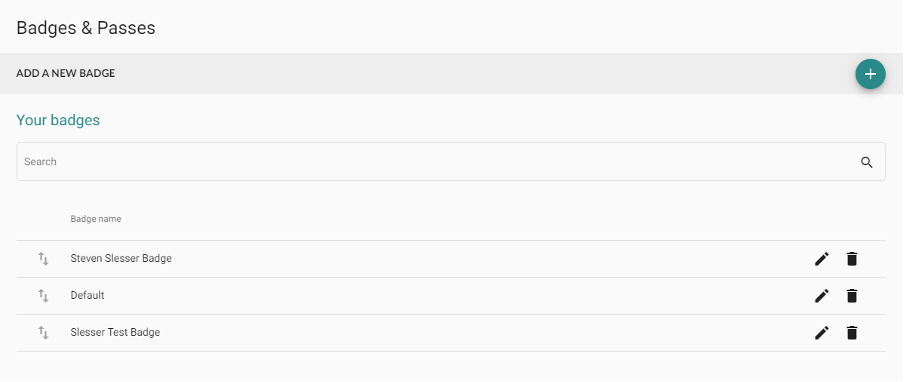
• You can then find your newly created badge in the "Badges/Passes" list
(Note: In the list you can search for badges, reorganise the badges by clicking and dragging them in the list and you can also delete badges from the list)
[](https://knowledgehub.crowdcomms.com/hubfs/Knowledge%20Base%20Import/image-1634653799233-1.png?hsLang=en-gb)
[.svg "CrowdComms Logo")](https://www.crowdcomms.com/)
[mailto:email@email.com](mailto:email@email.com)
Copyright © 2026, CrowdComms