
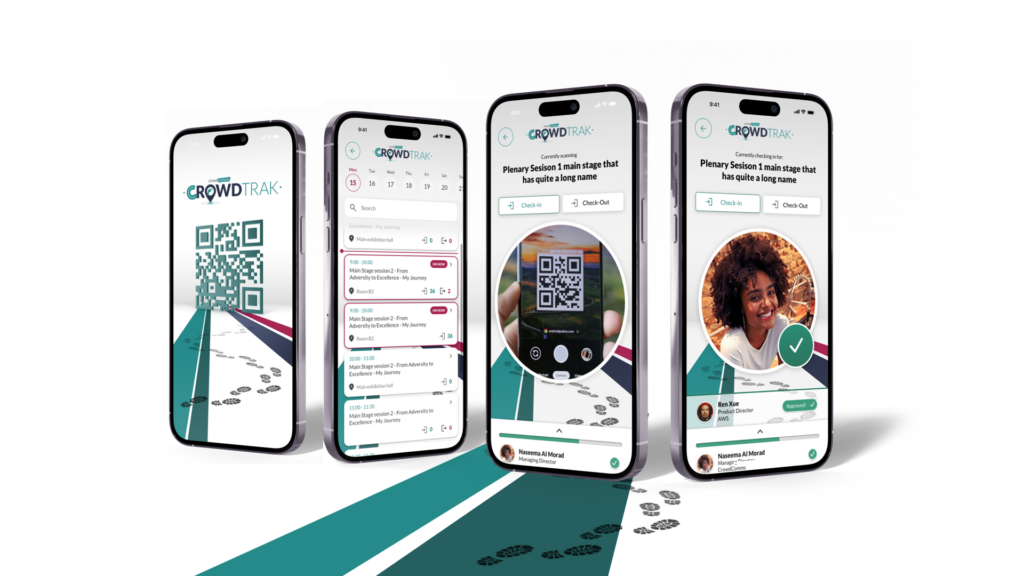
Elevate your event experience with our all-in-one solution. Track, monitor, report, and manage attendance effortlessly. Ensure instant and accurate records for tickets, safety, catering, CPD, sponsored sessions, or mandatory sessions. With CrowdTrak, use your device to scan or let attendees check themselves in.
Effortlessly generate, analyse, and act on real-time statistics, empowering you to optimise your event at every step.
Please contact your account manager to discuss options to enable this feature.
Step 1: Configure Attendance Tracking in the CMS
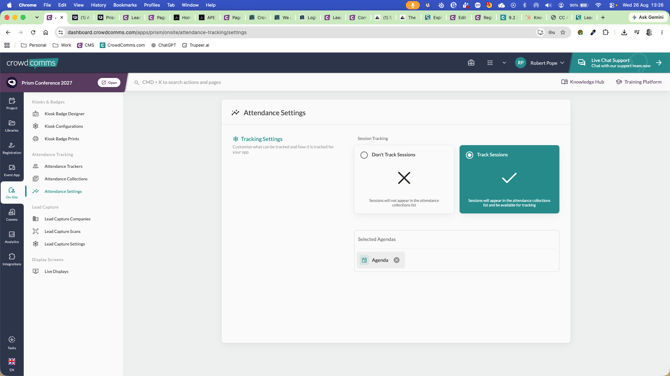
In the onsite section of the CMS, go to Attendance Settings to configure how attendance will be tracked.
You can set up sessions manually or use Import Agenda to pull in all pre-built agenda sessions as trackable sessions.
Step 2: Review and Export Attendance Collections
After configuring or importing sessions, go to Collections.
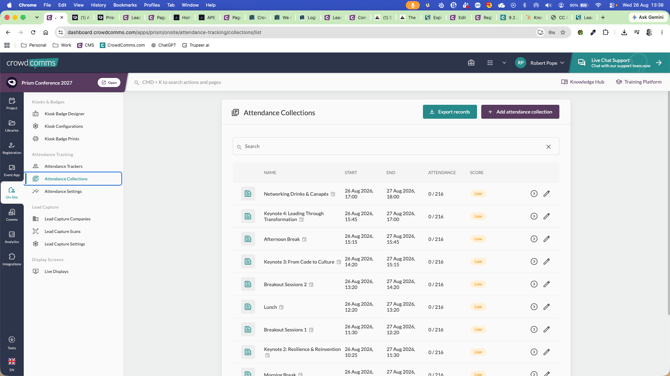
From here, you can export attendance records for reporting or open a specific session to see scanned vs. expected counts, scanned attendee details, and no-shows.
Filter by group if you need to focus on specific attendee segments.
Step 3: Set Up Attendance Trackers (Onsite Scanning Staff)
Navigate to Attendance Trackers in the CMS to manage the onsite staff who will scan attendees.

Add a tracker by selecting a person from the existing attendee/people list.
From their profile, you can generate a new secret code or send an invite email.
Step 4: Use the Tracker Invite Email to Log In
Trackers receive an invite email with a Continue to Login link.
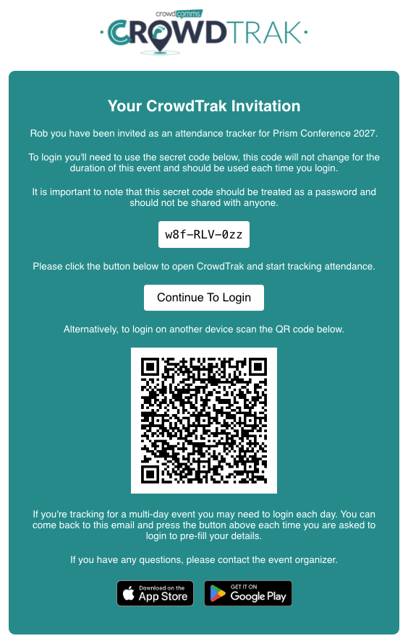
The login page pre-fills their event, email, and secret code so they can log in with a single click.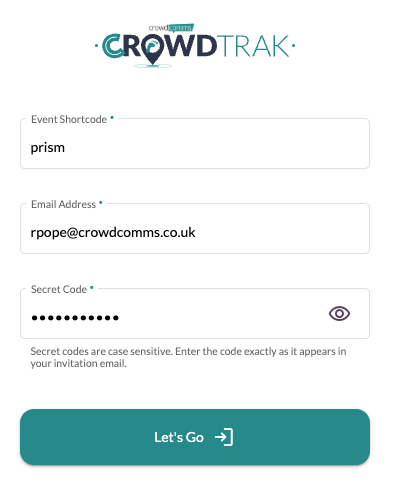
Step 5: Access the CrowdTrack Front End and Open a Session
After login, the tracker sees a list of sessions from the CMS.
Select a session to begin tracking; the scanner activates and shows the current scanned count.
.png?width=408&height=830&name=attendance-tracking.crowdcomms.com_prism_dashboard(iPhone%206_7_8).png)
Step 6: Scan Attendees via QR Code
Present the attendee’s QR code to the active scanner.
On a successful scan, the attendee is added to the session list and the total count updates.
%20(1).png?width=408&height=830&name=attendance-tracking.crowdcomms.com_prism_dashboard(iPhone%206_7_8)%20(1).png)
Step 7: Perform Manual Check-ins (No QR Code)
If an attendee has no QR code, use Manual Check-in.
%20(2).png?width=408&height=830&name=attendance-tracking.crowdcomms.com_prism_dashboard(iPhone%206_7_8)%20(2).png)