---
title: Custom Javascript integration
description: This document explains where and how you can use the new custom JavaScript/HTML capability to enhance the front-end experience of your event platform. You will learn the locations where custom code can be injected, what it affects globally, and see an example of how this can be used to create interactive, branded experiences such as an exhibitor showcase.
---
[Skip to content](https://knowledgehub.crowdcomms.com/c#main-content)
[](https://crowdcomms.com/)
- Home
- Products
- Pricing
- Blog
- Company
Open main navigation
Close main navigation
- Home
- Products
- Pricing
- Blog
- Company
- Contact us
Contact us
How can we help you?
- There are no suggestions because the search field is empty.
1. [Knowledge Hub](https://knowledgehub.crowdcomms.com/?hsLang=en-gb)
2. [Event App, Virtual & Hybrid Platform](https://knowledgehub.crowdcomms.com/event-app-virtual-hybrid-platform?hsLang=en-gb)
3. [Content & Modules](https://knowledgehub.crowdcomms.com/event-app-virtual-hybrid-platform?hsLang=en-gb#content-modules)
6 October 2026
# Custom Javascript integration
### Step 1: Understand Where Custom JavaScript Can Be Added
Custom JavaScript and HTML can now be injected into the `` of the front-end platform, enabling interactive and branded experiences across multiple areas. This capability has been added in three main locations:
- Global event app settings
- Global registration settings
- Individual widgets and modules in the website designer and Page builder modules
### Step 2: Configure Custom JavaScript in Event App Settings
Use the event app settings to add custom JavaScript or HTML that should apply globally to the event app front end. This is ideal for:
- Styling adjustments that should be consistent across the entire event app
- Global interactive elements or libraries that multiple pages rely on
- Any JavaScript that needs to be loaded for all users visiting the event app.
- I.e cookie banners or tracking analytics
### Step 3: Add Global Custom Code in Registration Settings
Within the registration settings, you can also inject custom JavaScript or HTML that applies globally to the front-end registration experience.
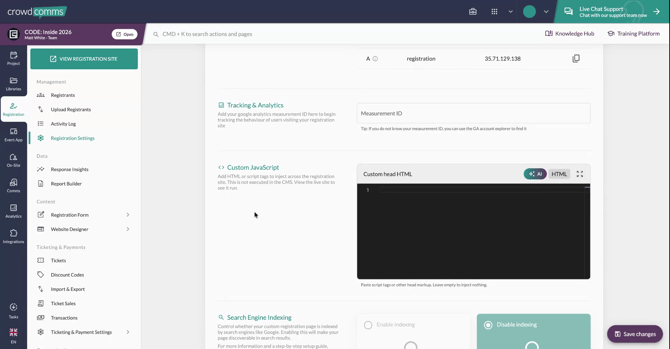
Use this for:
- Registration-specific analytics and tracking
- Cookie banners or consent mechanisms shown during registration
- Custom branding or UI enhancements that should appear on all registration pages
### Step 4: Use Custom HTML and JavaScript in Website Designer Widgets
Custom JavaScript and HTML are also available within various widgets in the website designer.
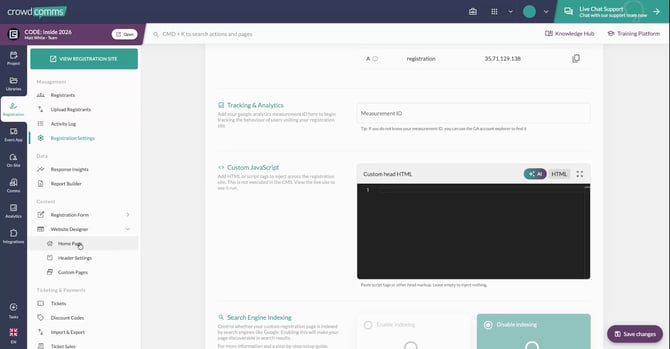
You can configure widgets to:
- Display interactive elements, sliders, or banners
- Embed third-party tools or content
- Add custom behaviour to specific sections of your event site
### Step 5: Leverage Custom HTML in Event App Modules
In addition to widgets on the website designer, you can find custom HTML options within event app modules.
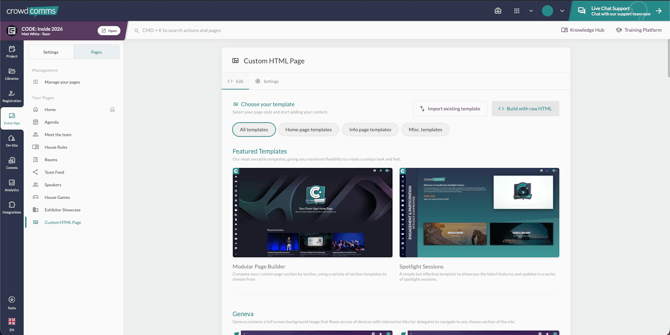
These custom HTML editors are particularly useful for:
- Handling AI-generated branding snippets that include JavaScript
- Fine-tuning the visual design and interactivity of specific modules or pages
- Providing an interactive and fully branded page to the event app
### Step 6: Build Interactive Experiences (Example: Exhibitor Showcase)
One powerful use case for custom JavaScript is creating an interactive exhibitor showcase. For example, you can design a rich, animated page featuring exhibitors, including:
- A scrolling or rotating banner of exhibitor logos
- Clickable elements that reveal more information about each company
- Interactive layouts that respond dynamically to user interaction
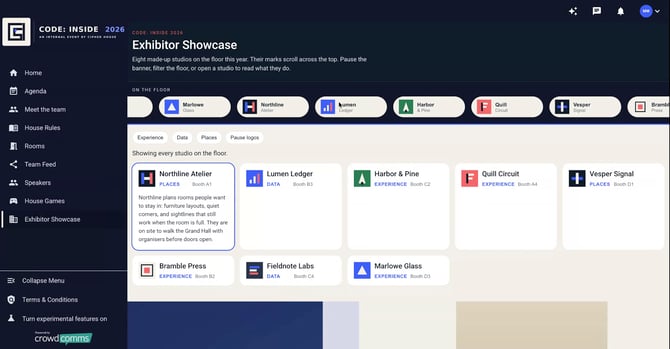
In this example page, visitors can click on an exhibitor tile or logo to view additional details, descriptions, or links. This type of interactive exhibitor page is just one example of what can be achieved using the custom JavaScript and HTML capabilities now available in the platform.
[.svg "CrowdComms Logo")](https://www.crowdcomms.com/)
[mailto:email@email.com](mailto:email@email.com)
Copyright © 2026, CrowdComms