Step 1: Access the Transactions Page
Within the registration site in the CMS, click the Transactions dropdown to navigate to the page.
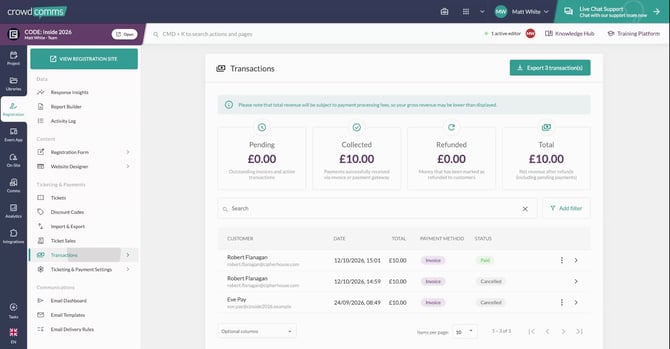
Here, you can view the list of registration transactions and their statuses.
Step 2: Select an Eligible Invoice Transaction
Identify a transaction that was paid via invoice (Note: credit notes are not applicable to gateway payments).
Open the Actions menu for the relevant invoice transaction and choose the option to mark this user as refunded.
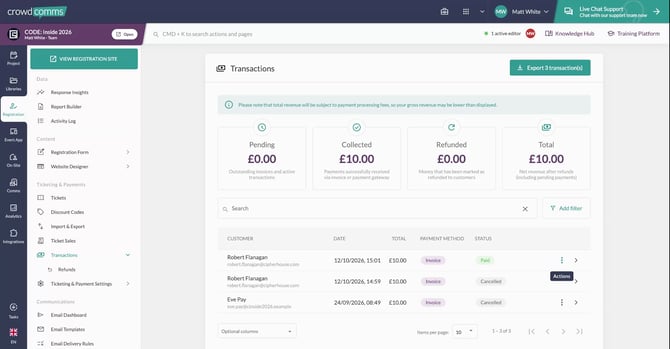
Step 3: Open the Refund Dialog
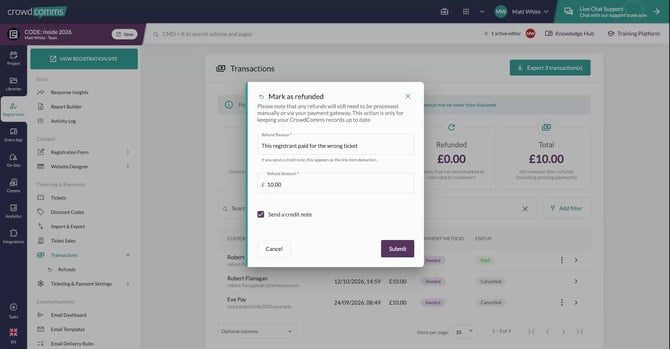
After selecting the refund option, a pop-up dialog will appear where you can configure the refund details.
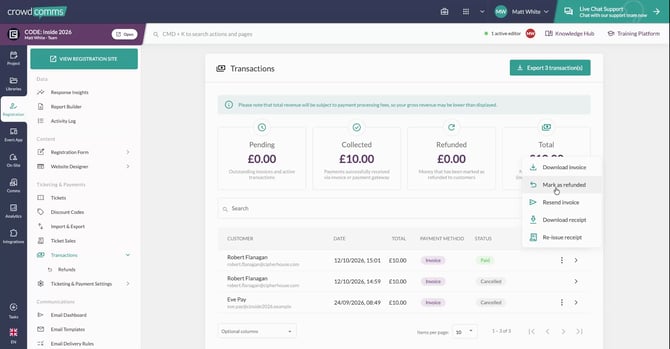
In this dialog, enter a refund reason explaining why the refund or credit is being issued.
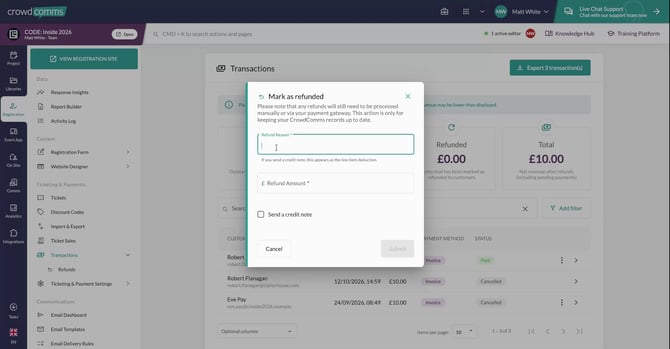
You will also need to specify a refund amount. This does not have to be the full registration amount; it could be the value of a single ticket or another partial amount.
Step 4: Set the Refund Amount and Issue a Credit Note
Decide on the amount to refund or credit. For example, you may choose to refund the registration total, or just the price of a single ticket bought.
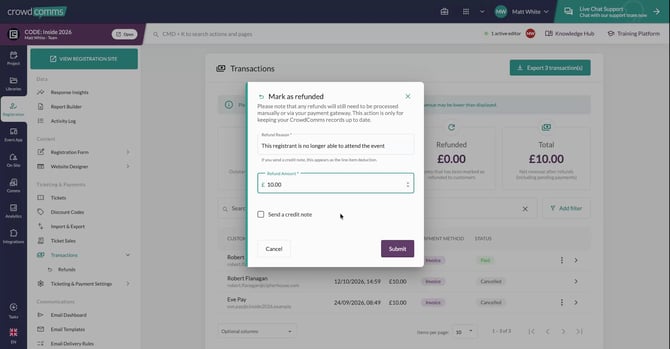
Confirm the refund amount for the ticket in the dialog and proceed.
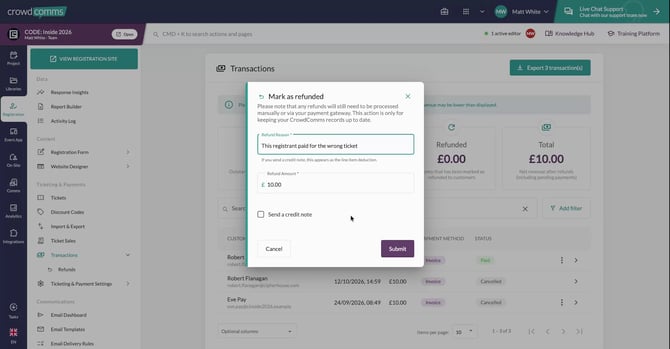
Instead of sending the money back to the registrant, select the option to issue a credit note. A credit note acts as a refund balance within your platform that the registrant can apply towards another ticket or registration, rather than receiving cash back.
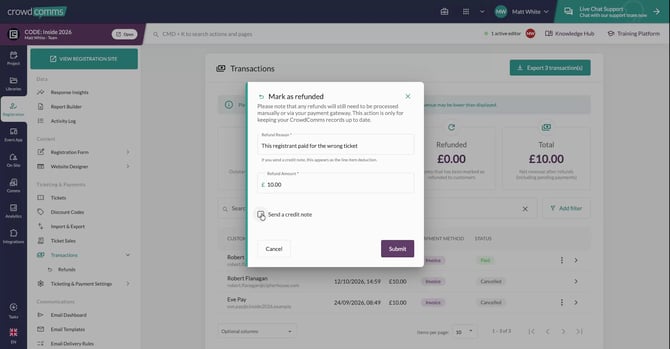
Step 5: Verify the Updated Transaction Status
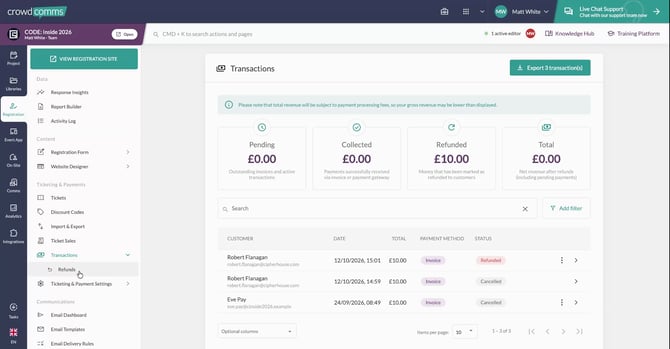
After issuing the credit note, check the transactions list again. You will see that the transaction status has been updated to Refunded for that user.
Step 6: Review the Refunds Tab and Credit Note Details
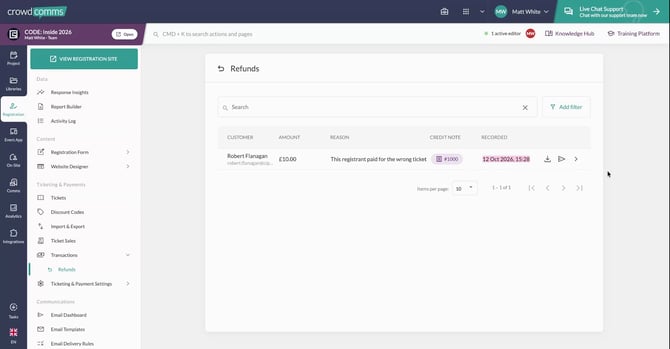
Navigate to the Refunds tab on the left-hand side of the interface.
Here you can see:
- The registrant’s name (e.g., Robert Flanagan)
- The amount refunded
- The refund reason
- The credit note issue number
You can also see when the refund was recorded.
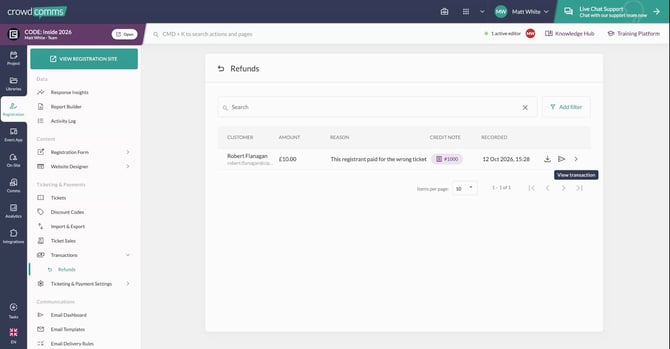
From this screen, you can:
- Download the credit note to view or store it
- Resend the credit note if the registrant misplaces the original (for example, loses the email)
- View the initial transaction details and the associated refunds
Step 7: Launch the Document Editor for Invoices, Tickets, and Receipts
Alongside credit notes, the builders (editors) for invoices and receipts have been updated with enhanced controls.
Open or launch the relevant document editor.
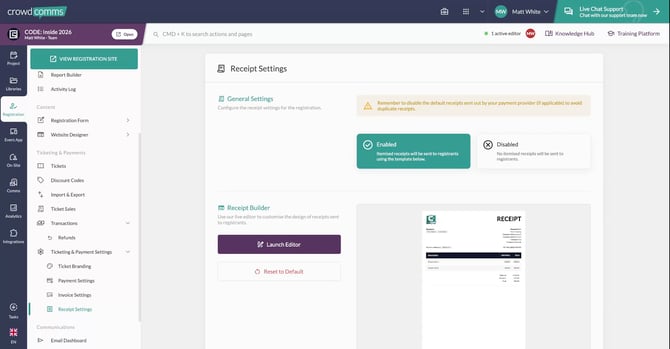
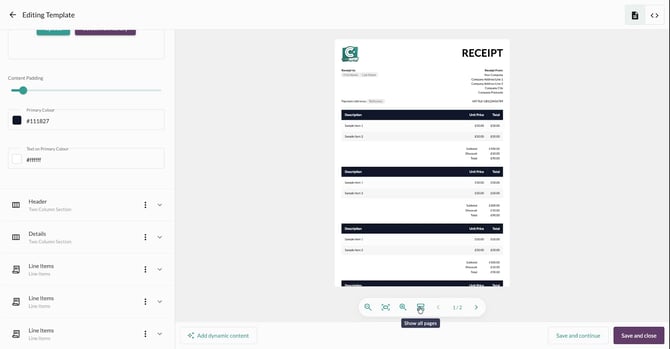
At the bottom of the editor, you will see several controls for viewing and adjusting the document layout.
Step 9: Use Zoom and Page View Controls
Within the editor, you can adjust the view to work more comfortably with your document:
- Zoom in to see details more clearly.
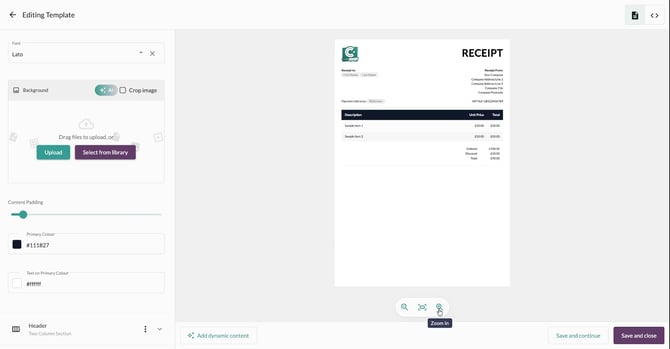
- Zoom out to see more of the document at once.
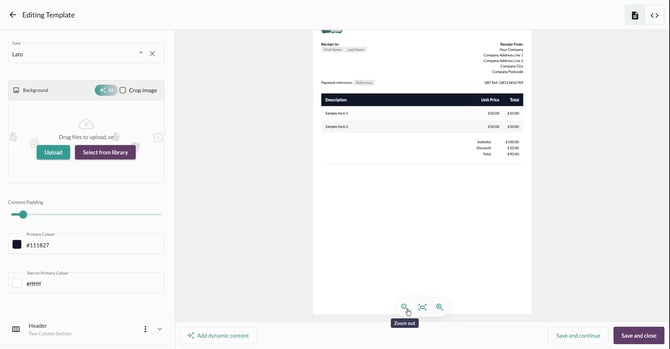
- Fit to page to automatically scale the document to fit the visible area.
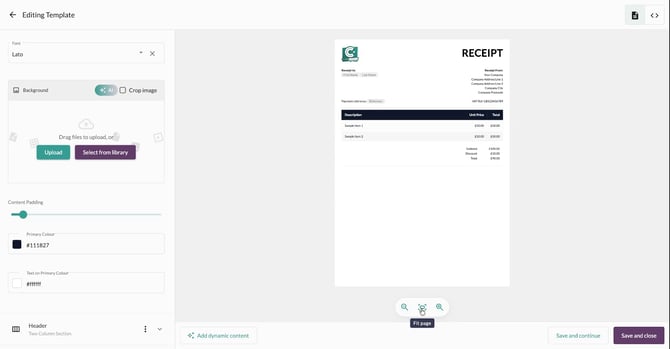
The document can also be a multi-page layout if needed.
Step 10: Manage Multi-Page Layouts and Fit Content to a Single Page
For example, if you add or fill in more data and the document grows longer, it may span multiple pages.
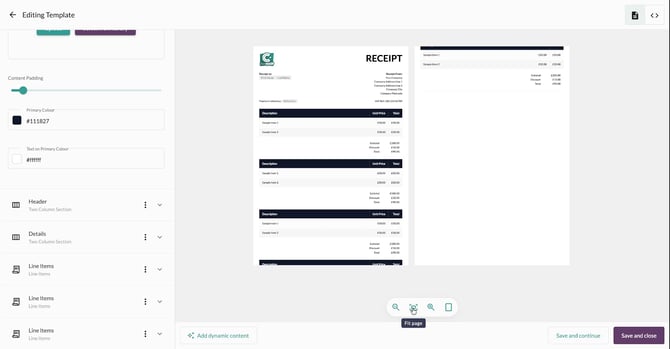
You can then use Show one page button to view one page at a time. This saves space on the screen.
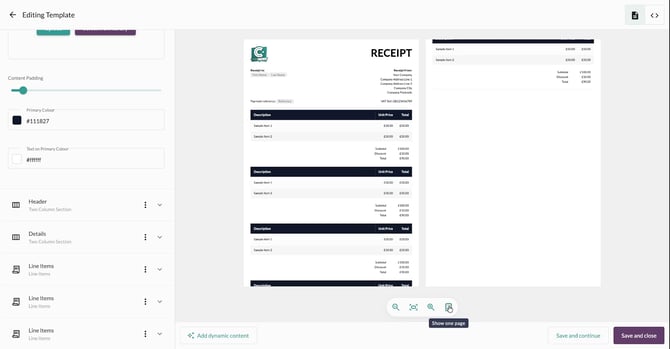
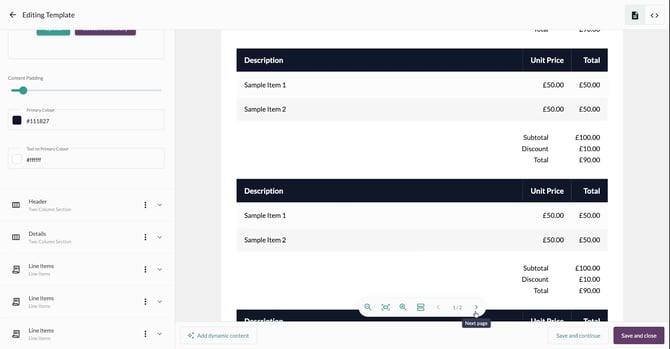
If your document has multiple pages, you can:
- Use the arrow control to navigate to the next page, or
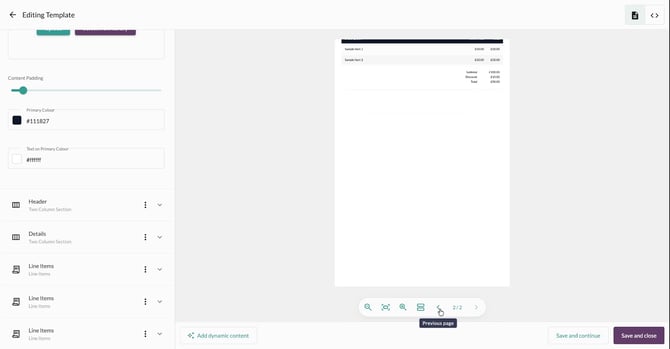
- Choose to show all pages at once in the editor view.