---
title: Kiosk Mission Control Guide
description: Use the Kiosk Mission Control panel (found under the Onsite section) to manage badge printing, kiosks, and attendee records in real time during an event.
---
[Skip to content](https://knowledgehub.crowdcomms.com/kiosk-mission-control-guide#main-content)
[](https://crowdcomms.com/)
- Home
- Products
- Pricing
- Blog
- Company
Open main navigation
Close main navigation
- Home
- Products
- Pricing
- Blog
- Company
- Contact us
Contact us
How can we help you?
- There are no suggestions because the search field is empty.
1. [Knowledge Hub](https://knowledgehub.crowdcomms.com/?hsLang=en-gb)
2. [Onsite Badge Printing](https://knowledgehub.crowdcomms.com/onsite-badge-printing?hsLang=en-gb)
3. [Badge Design & Kiosk Manager](https://knowledgehub.crowdcomms.com/onsite-badge-printing?hsLang=en-gb#badge-design-kiosk-manager)
30 October 2026
# Kiosk Mission Control Guide
### Step 1: Access the Kiosk Mission Control Panel
1. Navigate to the **Onsite** section of your admin dashboard.
2. Open the **Kiosk Mission Control** page.
3. Review the main cards and panels, which allow you to:
- Quickly print a badge.
- View all badge prints (from onsite kiosks or the admin dashboard).
- See which kiosks are currently online and ready for use.
- Access additional actions from the top-right action area.
### Step 2: Use Quick Print to Print an Existing Attendee’s Badge
1. In the **Quick Print** card, choose the option to select an existing person.
2. Search for and select the attendee whose badge you want to print.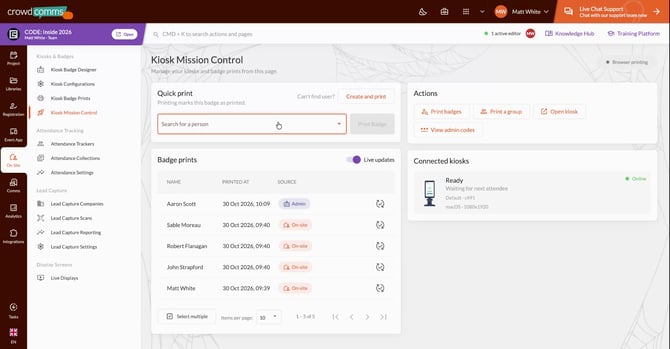
3. Confirm the person selection and proceed to print their badge.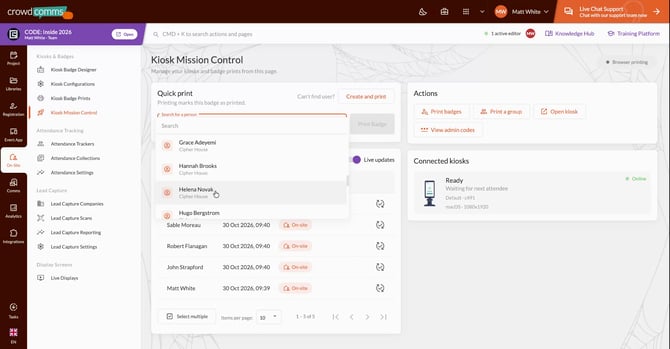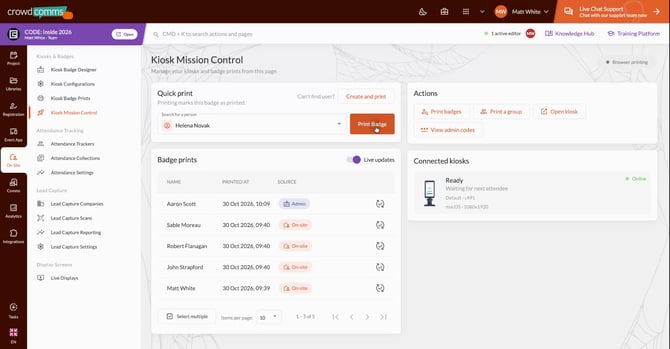
4. If you are on a laptop, use the **PDF printer** that appears to complete the print.
5. Mark the badge as **Printed** so that it appears in the **Badge Prints** list.
### Step 3: Create a New Person and Print Their Badge
1. From the Quick Print area, choose the option to **Create a new person**.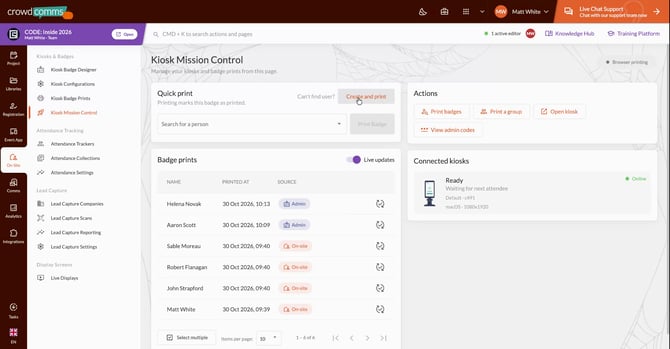
2. Fill in the person’s details in the form:
- Standard fields (e.g., name, email, address).
- People groups.
- Any custom fields defined in the People library.
3. Use the **Other fields** section efficiently:
- Fields you use more frequently automatically move higher in the list over time.
- This is particularly useful for events with many custom fields so you can quickly access only the important ones (e.g., address) without scrolling through the entire list.
4. After completing the form, print the badge and mark it as **Printed** so it appears in the Badge Prints list.
### Step 4: Review and Manage Badge Prints
1. Open the **Badge Prints** section
.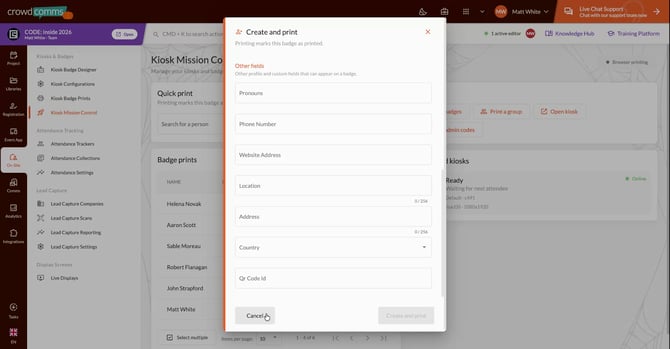
2. For each badge print, review:
- Who the person is.
- When the badge was printed.
- The **source** of the print (onsite kiosk or admin control center).
3. When needed, **reset** a badge print:
- Use this if someone loses their badge and needs a new one.
- Or if a badge was printed for the wrong person by mistake.
4. After resetting, the badge can be printed again.
### Step 5: Print Badges from the Actions Menu
1. In the top-right **Actions** area, select the option to print badges.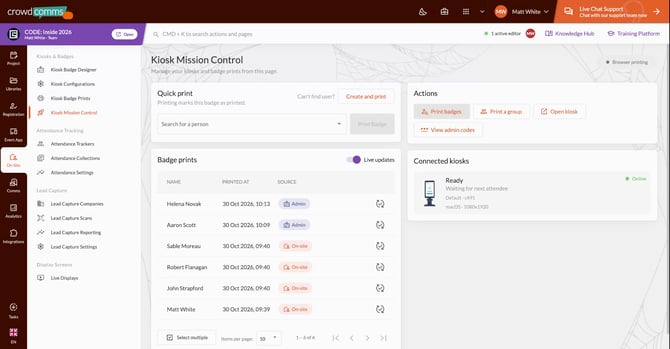
2. From this view, you can:
- See detailed information for each person.
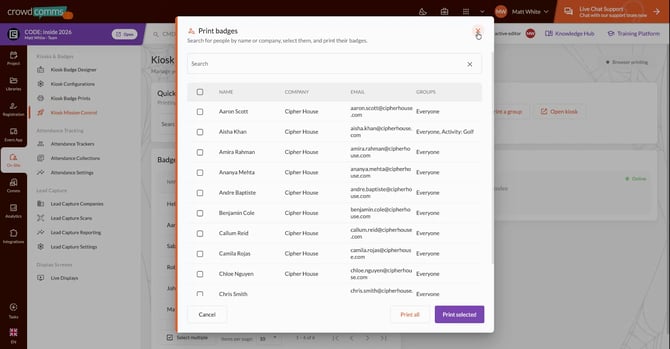
- Select and print badges for multiple people at once.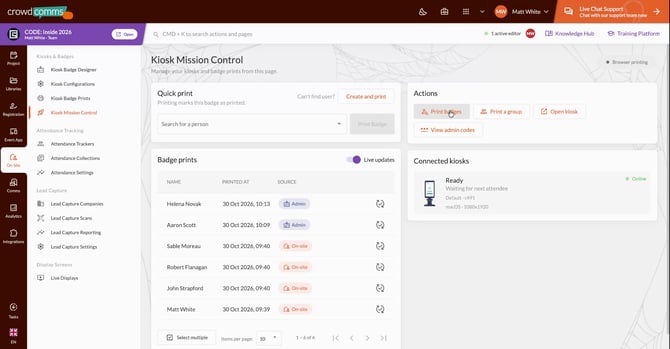
**Note:** the difference with the in the Quick Print section, which only allows printing **one person at a time**.
### Step 6: Print Badges for a Group
1. Open the **Print Group** option from the Actions area.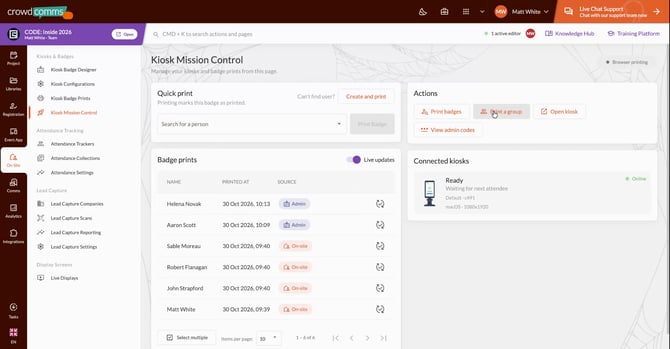
2. Select the target group you want to print badges for.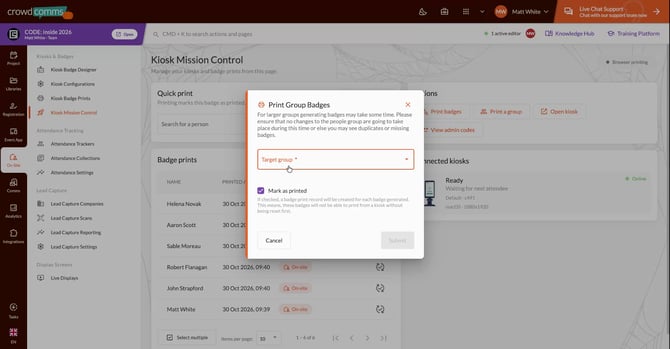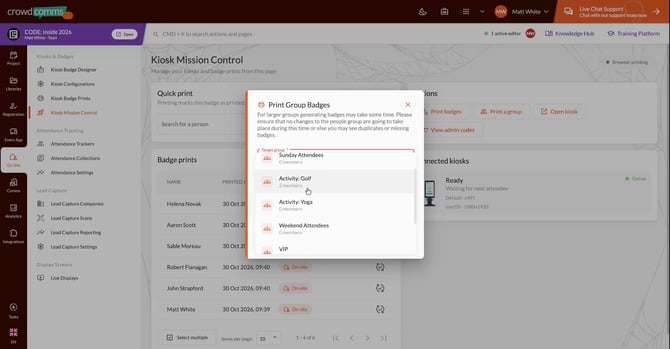
3. Review the group details, including the number of members.
4. Mark the group members as **Printed**, then submit the print job.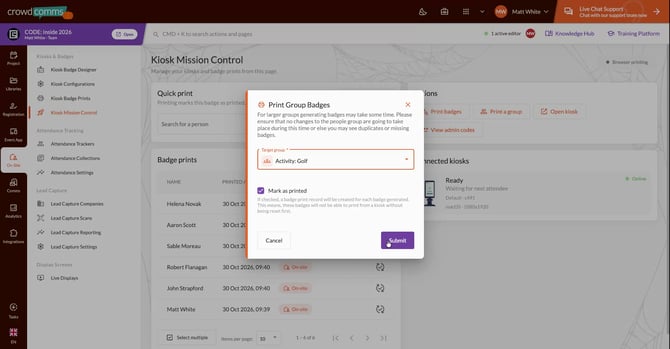
5. On a laptop, a PDF viewer will open; complete the print there.
6. Confirm that the newly printed badges appear in the **Badge Prints** list.
### Step 7: Control Live Updates
1. Locate the **Live updates** toggle within Kiosk Mission Control.
2. Turn **off** live updates if:
- You are experiencing slow or unstable internet.
- You prefer to reduce automatic data refreshes.
3. Turn **on** live updates when you need real-time information on badge prints and kiosk activity.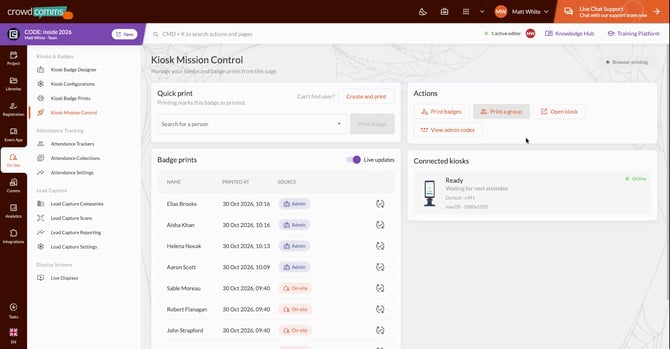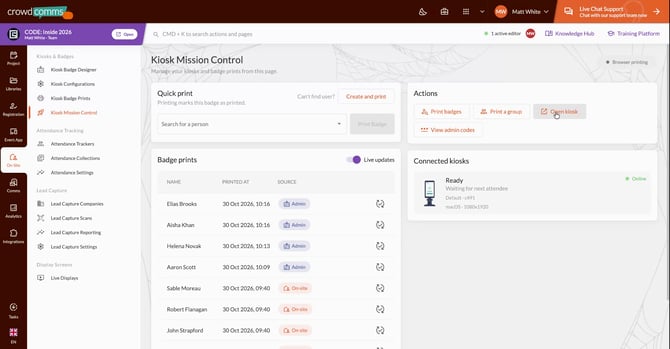
### Step 8: Open and Access a Kiosk from Mission Control
1. Use the option to **Open kiosk** from Kiosk Mission Control.
2. This opens a new browser tab with the kiosk session preloaded, so you do not need to manually enter the secret code or select the event.
3. In the same area, you can:
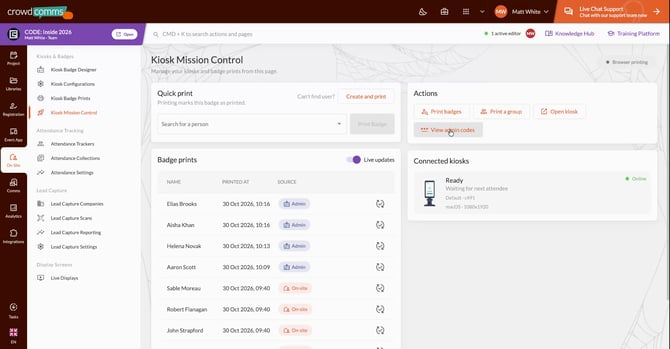
- View the **secret code** for the kiosk.
- Scan the **QR code** to instantly access the kiosk from another device.
### Step 9: Monitor Connected Kiosks and Printing Status
1. Open the **Connected kiosks** list to see all kiosks currently logged into the event.
2. Review for each kiosk:
- Device model and configuration.
- What they are currently displaying.
- Status (online, waiting, offline, or experiencing connection issues).
3. Watch the kiosk icon:
- When a kiosk is printing a badge, its status will show **Printing**.
- The icon will change to a short printing animation, confirming that the print job is in progress.
[](https://www.crowdcomms.com/)
[mailto:email@email.com](mailto:email@email.com)
Copyright © 2026, CrowdComms