
Lead Capture is on the App Stores!
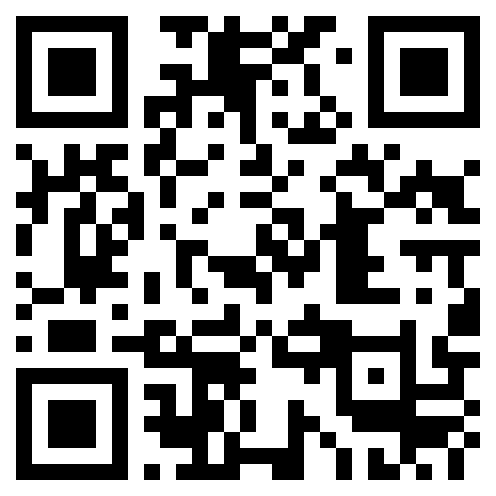
You can use the below smart QR Code (or this smart URL) to share a single URL link to Lead Capture. The link (or QR Code) will automatically detect if the device scanning it is Android or iOS and send the user to the appropriate app store for their device.
Direct App Store Links:
Video Guide
Step 1: Access the Lead Capture App from the Email Invite
Open your email invite and click the button in the middle of the message to launch the app on your device. You’ll land on the main interface, which includes the home screen, team page, attendees list, settings page, and a central camera button for scanning leads.
.png?width=408&height=830&name=lead-capture.crowdcomms.com_prism_68c3da4a-7a56-4613-94a1-e6680315f6b8_team(iPhone%206_7_8).png)
Step 2: Configure Pre‑Qualifying Questions and Lead Setup
Go to Settings from the bottom navigation bar and select the Questions tab. Add the key pre‑qualifying questions you want to ask during lead capture (for example, interest area, budget, or preferred follow‑up). These help you capture richer, more useful information.
.png?width=408&height=830&name=lead-capture.crowdcomms.com_prism_68c3da4a-7a56-4613-94a1-e6680315f6b8_home_token=LC_eyJhbGciOiJIUzUxMiIsInR5cCI6IkpXVCJ9.eyJpYXQiOjE3ODc3MzgxNDIuMTgyNjksImV4cCI6MTc5MDMzMDE0Mi4xODI2OTQsImVtYWlsIjoicnBvcGVAY3Jvd2Rjb21tcy5jby51ayJ9.wAVF_%20(3).png)
Within Settings, you can also configure:
- Tags: Classify leads (e.g. “Customer”, “Prospect”, or seniority levels).
- Actions: Define follow‑up actions (e.g. “Book a call”, “Send a quote”).
- Scoring: Choose how to score leads:
- Temperature (cold, warm, hot)
- Numerical (1–10)
- Percentage (0–100)
Step 3: Manage Team Members and Permissions
Open the Team tab from the bottom navigation bar. The primary company representative can add new users and assign permissions:
- Admin users: Can see all company scans and leads and can export data.
- Standard users: Can only see and manage their own scans.
.png?width=408&height=831&name=lead-capture.crowdcomms.com_prism_68c3da4a-7a56-4613-94a1-e6680315f6b8_home_token=LC_eyJhbGciOiJIUzUxMiIsInR5cCI6IkpXVCJ9.eyJpYXQiOjE3ODc3MzgxNDIuMTgyNjksImV4cCI6MTc5MDMzMDE0Mi4xODI2OTQsImVtYWlsIjoicnBvcGVAY3Jvd2Rjb21tcy5jby51ayJ9.wAVF_%20(1).png)
Step 4: Monitor Lead Capture and Enrich Lead Records
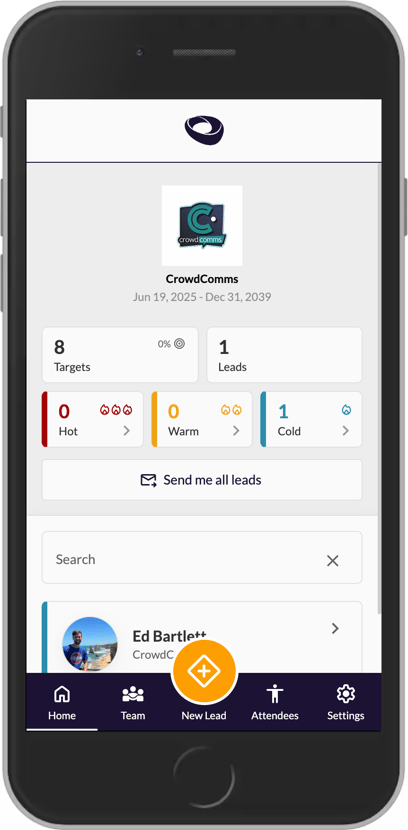
On the Home page, review overall performance:
.png?width=408&height=830&name=lead-capture.crowdcomms.com_prism_68c3da4a-7a56-4613-94a1-e6680315f6b8_home_token=LC_eyJhbGciOiJIUzUxMiIsInR5cCI6IkpXVCJ9.eyJpYXQiOjE3ODc3MzgxNDIuMTgyNjksImV4cCI6MTc5MDMzMDE0Mi4xODI2OTQsImVtYWlsIjoicnBvcGVAY3Jvd2Rjb21tcy5jby51ayJ9.wAVF_%20(4).png)
You can see:
- Total number of target attendees
- Number of leads scanned
- Breakdown of leads by temperature (warm, hot, cold), based on your scoring method
Tap a specific lead to open their detailed record:
Within the lead record, you can:
- Add or update follow‑up actions
- Record answers to your pre‑qualifying questions
- Apply tags
- Set or adjust the lead score
Use these fields to ensure each lead contains all information needed for effective follow‑up.