
Step 1: Enable Manual Approval in Registration Settings
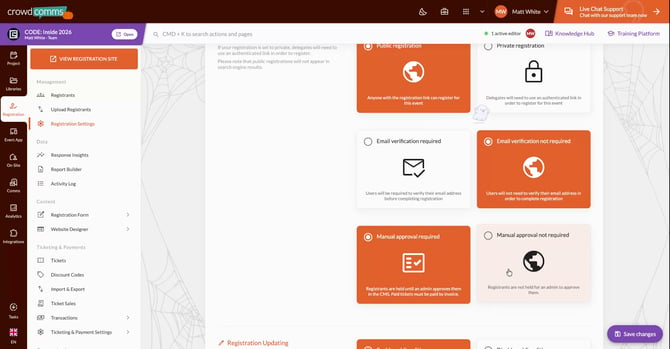
Navigate to your registration site configuration in the CMS, then open the Registration Settings area.
Scroll down until you find the Manual Approval Required field, which is off by default.
Set Manual Approval Required to On to ensure new registrations require administrator approval before they are fully completed.
Step 2: Submit a Registration on the Front-End Site
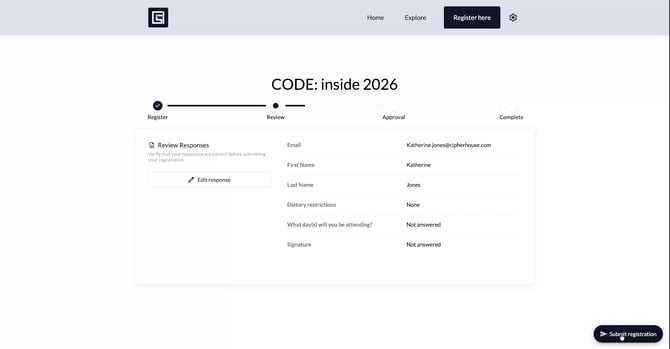
Go to your front-end registration site to experience the process as a registrant.
Begin a new registration and fill in the required details in the registration form fields.
Submit the form to complete the initial registration attempt. The registrant will not be fully registered yet, but instead will be stopped at a Pending Approval stage.
Step 3: Review Pending Registrations as an Administrator
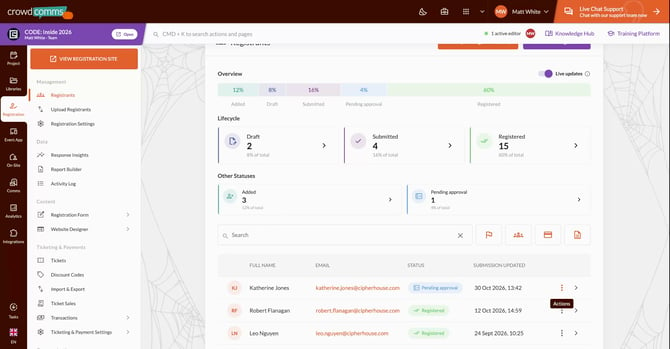
In the CMS, go to the Registrants tab for the event or registration site.
Locate the registrant who is now in a Pending Approval status (for example, “Catherine Jones”).
From the admin view, you can review the registrant’s details and then choose to Approve or Reject the registration. The registrant may still edit their registration details while it is pending, subject to your configuration.
Step 4: Approve the Registration and Allow Event Access
When you are satisfied with the registrant’s details, approve the registration in the CMS.
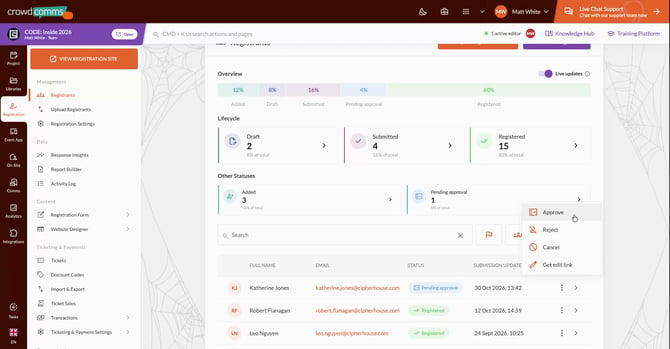
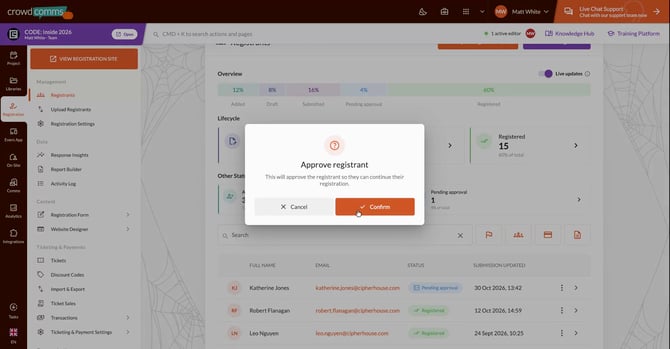
Once approved, the registrant will be moved from Pending to Complete. They can then access the Complete section on the front end and will be able to enter and engage with the event when it is live.
Step 5: Handle Invoicing and Online Payments with Manual Approval
If the registration involves invoicing (offline payment), there will be an extra step between the registrant’s initial review and the final approval:
- The registrant must enter all required invoice details.
- After submitting invoice information, the registration moves to the Approval stage.
- An admin must then approve or reject the registration as usual.
For online payments via a payment gateway, the additional payment step occurs after the approval stage:
- The admin first approves the registration.
- Once approved, in the Complete area, the registrant can enter their card details and purchase tickets online using the payment widget (if configured).
Step 6: Understand Ticket Allocation During Pending Approval
If tickets are part of the registration process and the registrant is waiting for approval:
- The ticket is remembered (reserved conceptually) but not added to the Paid and Used Tickets section.
- The ticket is not added to the Ticket Sales tab or its table while the registration is still pending.
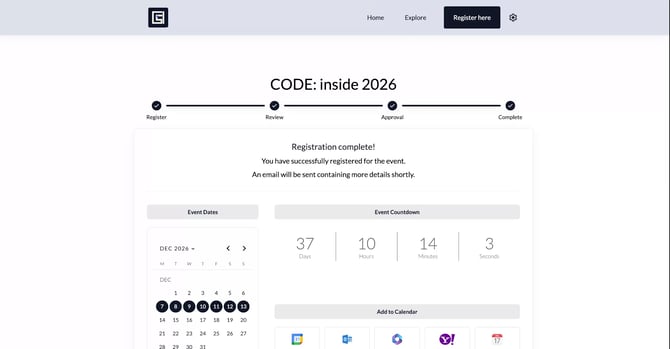
Only after the admin approves the registration is the ticket considered consumed and reflected in the relevant ticket sales reporting.