Step 1: Configure Ticket Visibility When Unavailable
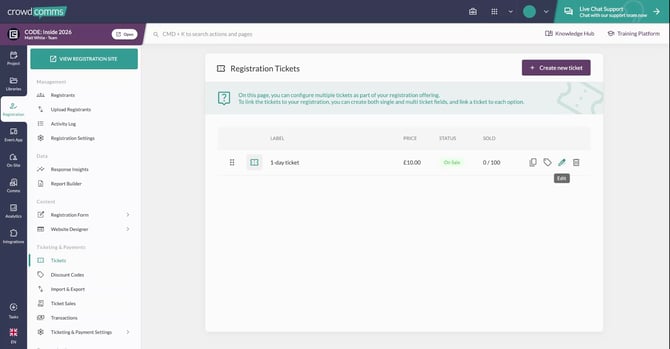
Go to your Tickets page and edit the relevant ticket.
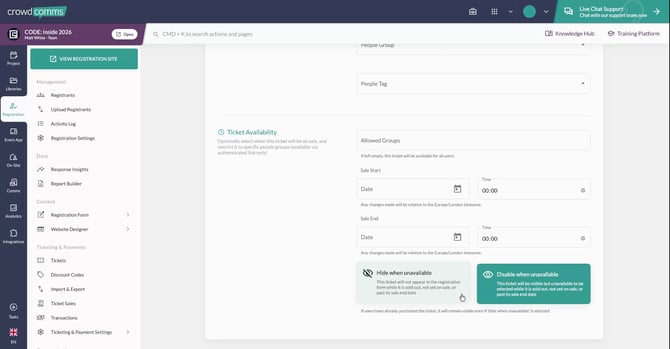
Near the bottom of the ticket settings, you will see two toggles: “Hide when unavailable” and “Disable when unavailable”.
- If you toggle Disable when unavailable, the ticket remains visible to delegates but appears grayed out and cannot be selected once sold out. This lets people see that the ticket existed, but they cannot purchase it.
- If you enable Hide when unavailable, the ticket is completely removed from the registration form when it is out of stock, so registrants will not see the ticket nor be able to select it.
Step 2: Set a Maximum Discount for Discount Codes
Open the Discount Codes section and edit a discount code.
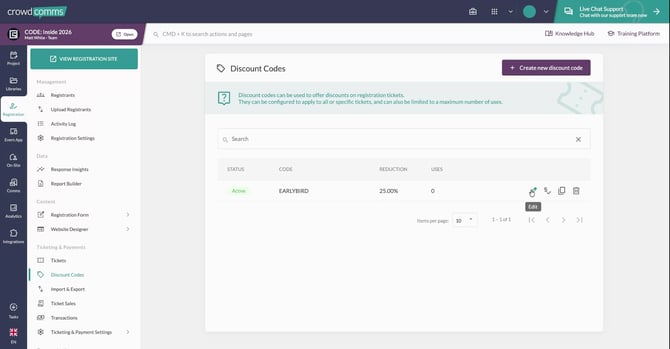
Within the discount code configuration, you will see a new Maximum Discount field.
Use this field to cap the total monetary value of the discount that can be applied, which is particularly useful for bulk ticket purchases.
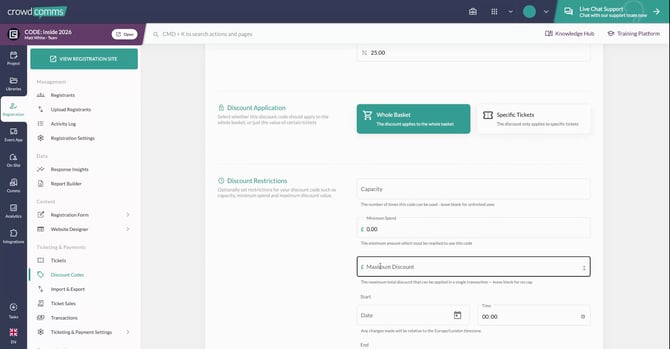
For example, if you have an EARLYBIRD code that gives 25% off the entire basket, you can set a maximum discount of £100 to the total price for the registration.
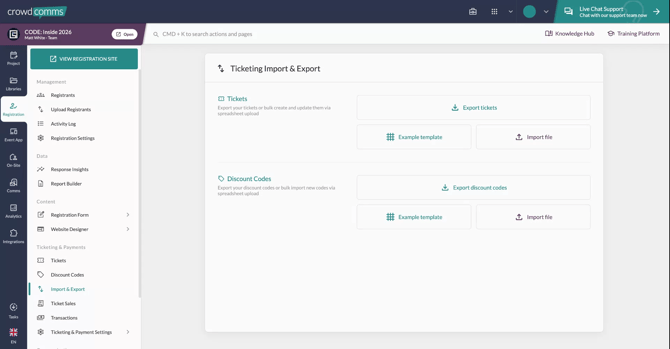
Step 3: Use the Import and Export Page for Bulk Management
Navigate to the new Import and Export page.
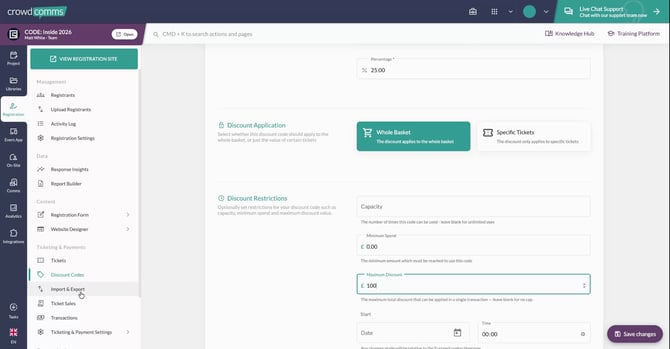
Here you can import and export your tickets and discount codes for bulk uploading or editing, streamlining the setup and maintenance of multiple items at once.